







How to install a texture pack (resource pack) in Minecraft
No mod loader needed: download the .zip, drop it in the resourcepacks folder and activate it. Plus what the “made for an older version” warning really means.
On this page · 5
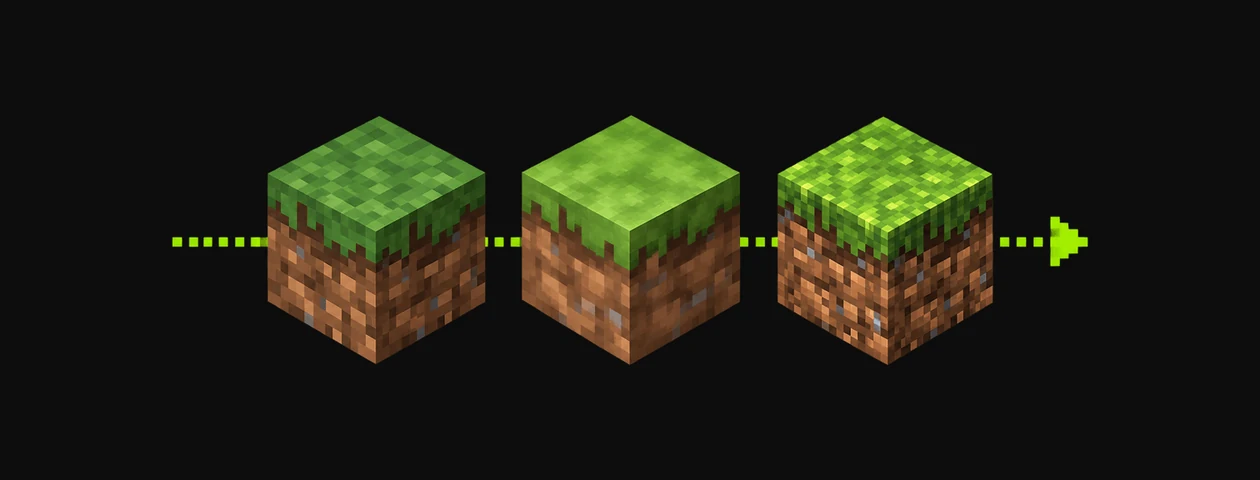
Texture packs — officially resource packs — change how blocks, items and menus look. On Java Edition they work in vanilla: no mod loader required.
Download the pack
Pick a pack from our texture pack catalog and download it from its official page. You get a .zip file. Choose the file that matches your Minecraft version when several are offered.
Put it in the resourcepacks folder
- In the main menu or in game: Options → Resource Packs.
- Click Open Pack Folder.
- Drop the
.zipinto that folder — don't unzip it.
Activate it
Back in the Resource Packs screen, the pack appears in the Available column. Click the arrow to move it to Selected, then click Done. The game reloads its textures.
If you stack several packs, the one at the top of the Selected list wins where they overlap.
“Made for an older/newer version”
This warning means the pack's format number doesn't match your game (26.3 uses resource pack format 97.1). Many packs still work fine; some textures may be missing. If something looks broken, look for an updated file on the pack's page.
Packs that need extras
- Connected textures, emissive or custom-model features were historically OptiFine-only. On Fabric, mods such as Continuity and Entity Model Features provide them — check the pack's description.
- Very high resolutions (128×, 256×) need a strong GPU; start at 16× or 32×.