







How to run your own Minecraft Java server (26.x)
Java 25, the official server.jar, the EULA, and the 26.3 change that catches everyone out: the whitelist is now on by default.
On this page · 6
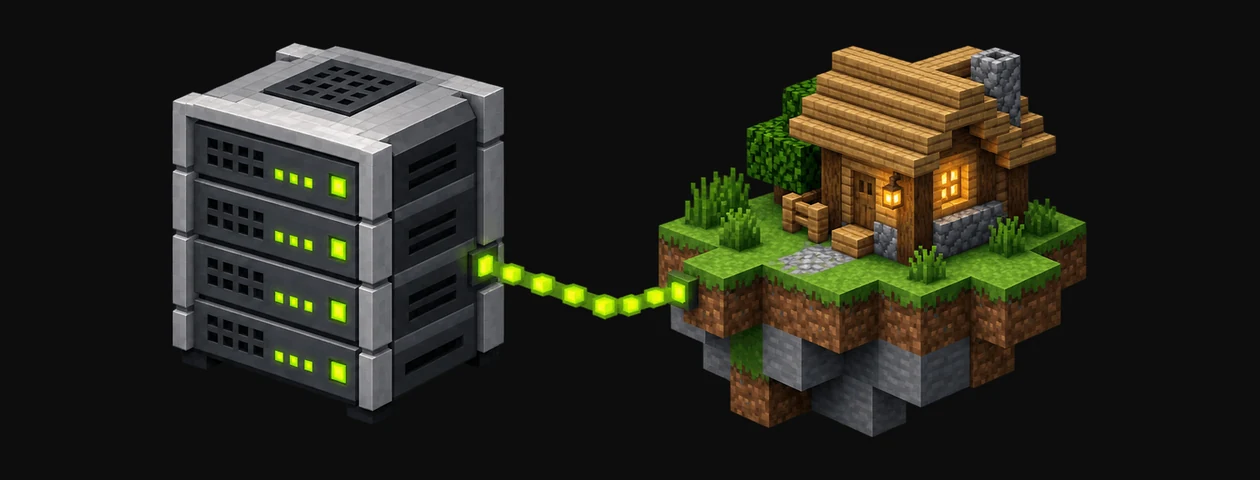
A vanilla Java server is free and takes about ten minutes. Here is the setup for the 26.x versions.
Install Java 25
Since 26.1, Minecraft's official metadata requires Java 25. Install a Java 25 runtime (for example Eclipse Temurin), then check in a terminal:
java -versionThe output must show version 25. An UnsupportedClassVersionError at startup means an older Java is still being used.
Download the server
Get server.jar from the official download page and put it in an empty folder — the server creates its files next to it.
First start and EULA
java -Xms2G -Xmx4G -jar server.jar noguiThe first run stops immediately and creates eula.txt. Open it, set eula=true (you accept Mojang's EULA), save and run the same command again. -Xmx4G gives the server 4 GB of RAM — 2–4 GB is plenty for a few friends.
The whitelist (on by default since 26.3)
Since 26.3, new servers start with white-list=true: nobody can join until you allow them. In the server console:
whitelist add PlayerName
op YourName
To open the server to everyone instead, set white-list=false in server.properties and restart.
Connect
- On the same computer: add the server
localhost. - On your home network: use the machine's local IP.
- From outside: forward TCP port 25565 on your router to that machine and share your public IP — or use a hosting provider.
Keep it healthy
- Back up the
worldfolder before every update. - Update Java and the server together; modded servers (Fabric, Paper) must match the game version.
- Never run a server exposed to the internet with
online-mode=false.